How to Get and Activate a Roshan eSIM
A Roshan eSIM is a digital SIM that connects your phone to Roshan’s 4G network without needing a physical SIM card. It can be activated by scanning a QR code on a compatible smartphone, making it a convenient option for travellers, dual-SIM users, and anyone who wants an additional Roshan line. To get a Roshan eSIM, visit a Roshan store or authorized point, complete the required registration with your valid ID, and receive your eSIM QR code. Once connected to Wi-Fi, go to your phone’s mobile network settings, select Add eSIM, scan the QR code, and follow the activation steps. After activation, you can add a Roshan internet bundle through the My Roshan app or short codes. If you experience issues, check that mobile data is enabled for the eSIM and that it is selected as your default data line.
How to Get and Activate a Roshan eSIM in Afghanistan: 2026 Step-by-Step Guide
A Roshan eSIM is a digital SIM that connects you to Roshan's 4G network without a physical card. You install it by scanning a QR code, and it is ready in a few minutes. An eSIM is ideal for travellers, dual-SIM users, and anyone who wants a second Roshan line on a modern phone. This guide explains how to get a Roshan eSIM, how to activate it, how to add an internet bundle, and how to fix the most common setup problems. To pick up your eSIM in person, find your nearest Roshan store.
What is an eSIM and how is it different from a physical SIM?
An eSIM (embedded SIM) is a small chip already built into your phone. Instead of inserting a plastic card, you download a mobile profile onto that chip by scanning a QR code. The result is the same Roshan number and network access you would get from a normal SIM, but with no card to insert, lose or damage. Because the eSIM is digital, you can store more than one profile on a compatible phone and switch between lines in your settings, which is why eSIMs are popular with people who keep a separate number for work or travel.
Does my phone support a Roshan eSIM?
Most flagship phones released from around 2020 onward support eSIM, including recent iPhone, Samsung Galaxy and Google Pixel models. The quickest way to check is to look in your phone's settings for an option to “Add eSIM,” “Add cellular plan” or “Add mobile plan.” If that option appears, your device is eSIM-ready. If you are unsure, the staff at a Roshan store can confirm whether your specific model is supported before you set anything up.
How to get a Roshan eSIM
Getting a Roshan eSIM follows the same identity rules as a normal SIM in Afghanistan, which means valid registration with your Tazkira or other accepted ID. The typical process is:
1. Visit a Roshan store or authorised point and request an eSIM for your number, or a new eSIM line.
2. Complete SIM registration with your ID, as required for all connections in Afghanistan.
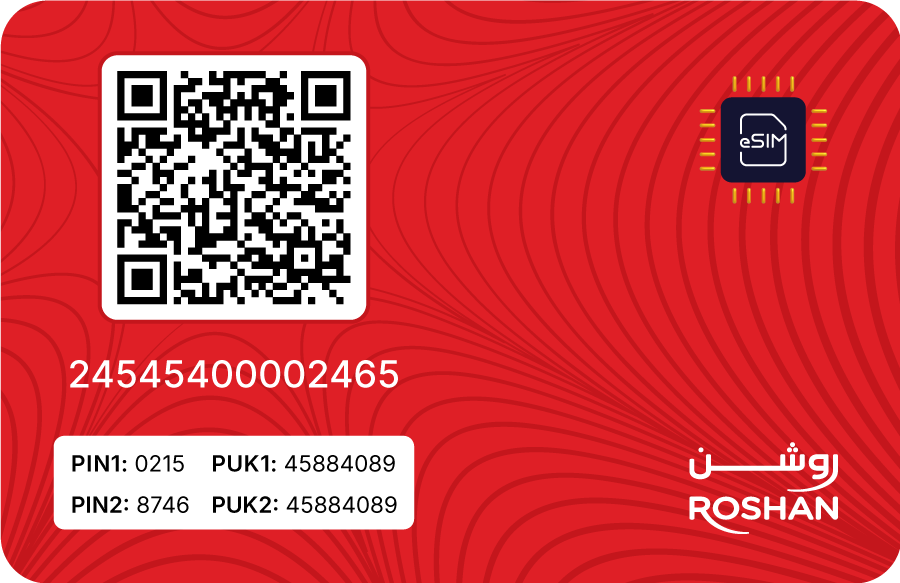
3. Receive your eSIM QR code, usually printed or sent to you securely.
4. Keep the QR code handy and make sure your phone is connected to Wi-Fi for the next step.
How to activate your Roshan eSIM
Once you have the QR code, activation takes only a few minutes:
5. Connect your phone to a stable Wi-Fi network.
6. Open Settings, then go to Cellular or Mobile Network, and choose Add eSIM or Add cellular plan.
7. Scan the QR code with your camera when prompted.
8. Label the line (for example “Roshan”) and set it as your data line if you want to use it for internet.
9. Turn on mobile data, and enable data roaming for the eSIM line if your phone asks for it.
Allow a few minutes for the profile to register on the network. If activation seems slow, that is normal on busy networks, so avoid restarting the phone mid-setup.
Adding an internet bundle to your Roshan eSIM
An eSIM gives you the connection; a data bundle gives you the internet. After activation, add a package the same way you would on a physical SIM — through the My Roshan app or a short code. Choose a daily, weekly or monthly plan based on your needs; our Roshan internet packages guide compares the options. For current prices, see the tariffs page.
Roshan eSIM troubleshooting
If your eSIM is not connecting, work through these common fixes:
• No data after activation: make sure mobile data is on for the eSIM line and that data roaming is enabled if prompted.
• QR code will not scan: turn off any VPN, clean the camera lens, and try again on good Wi-Fi.
• Slow activation: wait 10–15 minutes on busy networks; do not restart the phone during setup.
• Wrong line being used: in settings, set the Roshan eSIM as your default data line.
Roshan eSIM for travellers and dual-SIM users
If you visit Afghanistan or move between provinces for work, an eSIM lets you keep your home number on the physical SIM while using a Roshan line for local data and calls. For a fixed base such as a home or office, you may prefer Roshan Tez-Net for a shared, higher-capacity connection. Many people use both: an eSIM for the phone, and Tez-Net at home.
Frequently asked questions about the Roshan eSIM
Is a Roshan eSIM the same speed as a normal SIM?
Yes. An eSIM connects to the same Roshan 4G network as a physical SIM, so speed depends on coverage and your device, not on whether the SIM is digital or plastic.
Can I keep two numbers on one phone with an eSIM?
On a dual-SIM phone you can run a physical SIM and a Roshan eSIM at the same time, which is useful for separating work and personal lines or keeping a home number while travelling.
Do I need internet to activate a Roshan eSIM?
Yes. You need a Wi-Fi connection to download and install the eSIM profile when you scan the QR code. After that, the eSIM uses Roshan's mobile network.
What if I change my phone — can I move my eSIM?
Yes. Your eSIM QR code can be scanned up to 10 times, so if you change your phone, you can simply scan the same QR code on your new compatible device
Does the Roshan eSIM work in remote areas?
An eSIM follows the same coverage as any Roshan SIM. Service is strongest in cities and along main routes, and can be weaker in remote, off-route locations.
How do I add data to my eSIM after activation?
Add a daily, weekly or monthly bundle through the My Roshan app or a short code, exactly as you would on a physical SIM. Check current options on the tariffs page.